Putting a voicer on your WordPress site
The WordPress plugin puts a voicer on any page or post: the live embedded question and its one voice, or a branded QR card, straight from a pasted share link.
# What the plugin puts on your page
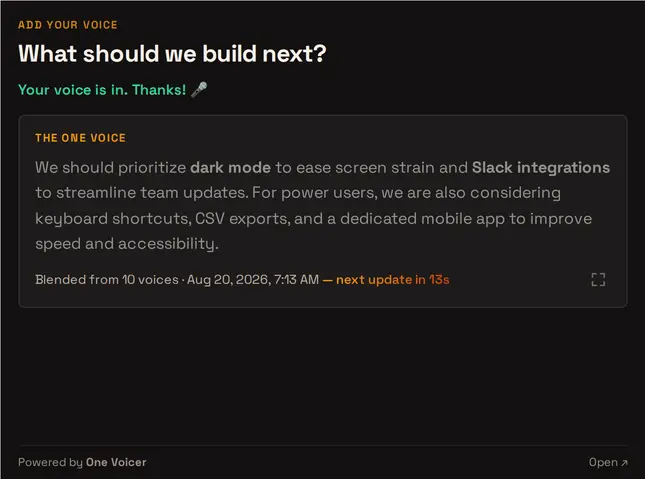
The plugin adds one block (plus a matching shortcode for classic-editor sites). You paste a voicer’s share link, and the page renders one of two things, chosen automatically from the voicer’s embed settings.
Either way it is the same voicer as everywhere else: the voices your site collects show up in the app, count toward the same blend, and land in the same history.
- The live embed
- The full experience: the question, the answer box, and the blended one voice, updating in place. Visitors answer right on your page, no account and no app. Shown when the voicer has embedding enabled (Creator plan) and your site’s domain is on its allowed list.
- The QR card
- The fallback, and it works on every plan: a compact OneVoicer card with a scannable QR code of the share link, a tappable link for phones, and an optional heading. Scanning or tapping opens the voicer’s public page, where anyone can add their voice.
# Installing the plugin
The plugin is in the official WordPress plugin directory under the name OneVoicer, written as one word. In your WordPress admin, go to Plugins, Add New, search for “OneVoicer,” then Install Now and Activate. It needs WordPress 6.6 or newer.
There is no settings screen and no API key. The plugin is configured entirely by the share links you paste into it, and your OneVoicer account stays on onevoicer.com; the plugin never asks you to sign in.
# Using the block
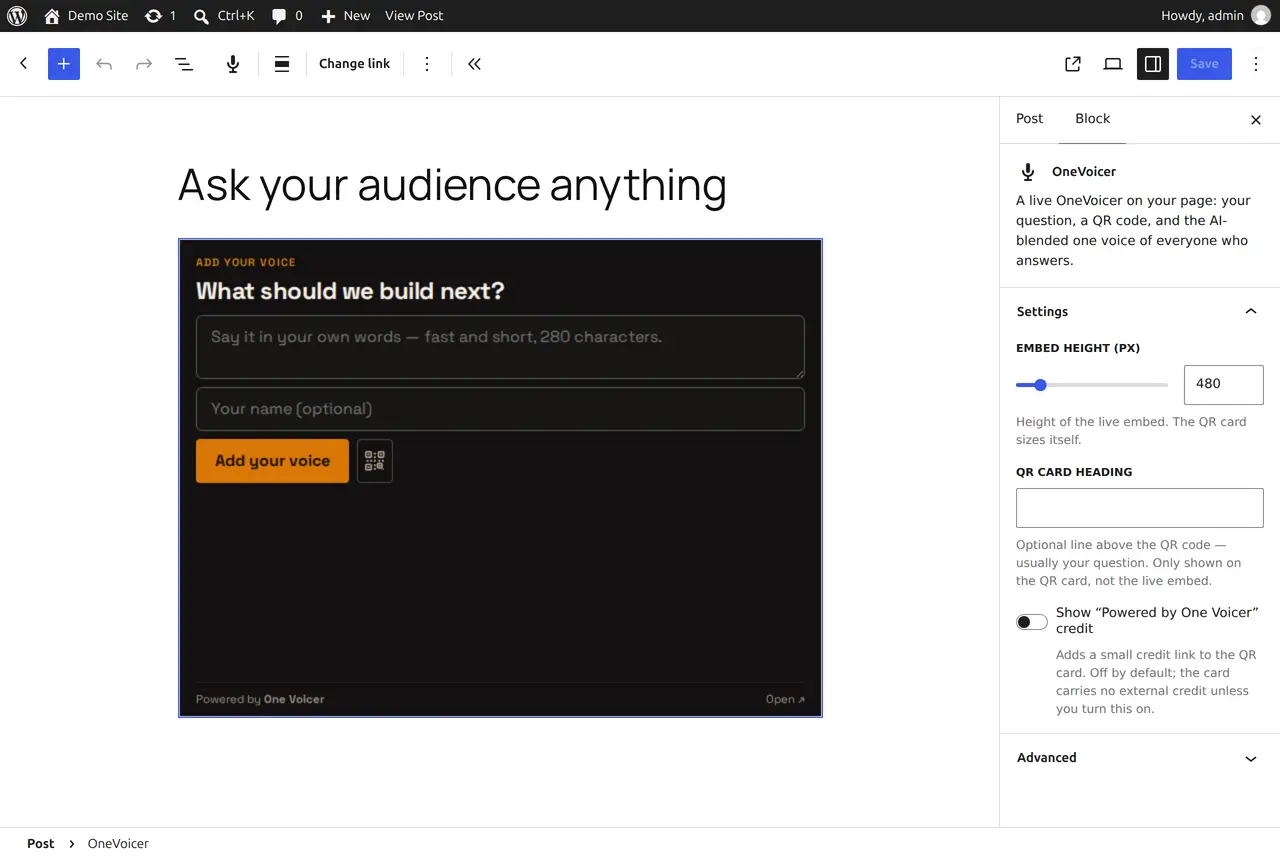
Add the OneVoicer block to any page or post and paste your voicer’s share link, the same app.onevoicer.com/v/… link you would send to a chat. The block checks the link and previews exactly what visitors will see, right in the editor.
If the live embed is not available, the editor says why (embedding not enabled on the voicer, or your site’s domain missing from its allowed list) with a pointer to the setting that fixes it. Visitors never see those notices; the published page shows the QR card until the live embed is ready.
- Link
- The voicer’s share link. Change link in the block toolbar swaps it.
- Embed height
- Height of the live embed in pixels (default 600). The QR card sizes itself.
- QR card heading
- An optional line above the QR code, usually your question. Only shown on the QR card.
- Powered by credit
- Adds a small OneVoicer credit link to the QR card. Off by default.
- Shortcode
- On a classic-editor site, [onevoicer link="…" height="600" heading="Your question"] does the same job.
# The QR card on every plan
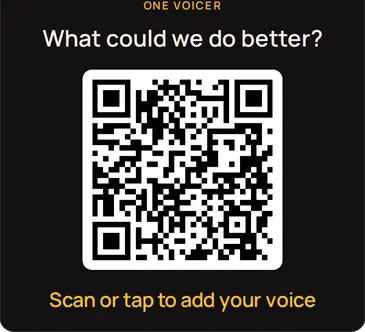
The QR card needs nothing beyond a live voicer. It works with any voicer on any plan, including the free Starter plan, which makes the plugin a genuinely free way to put a voicer in front of your readers. The QR code is drawn in the visitor’s browser; nothing about your visitors is sent anywhere.
# Allowing your site’s domain for the live embed Creator plan
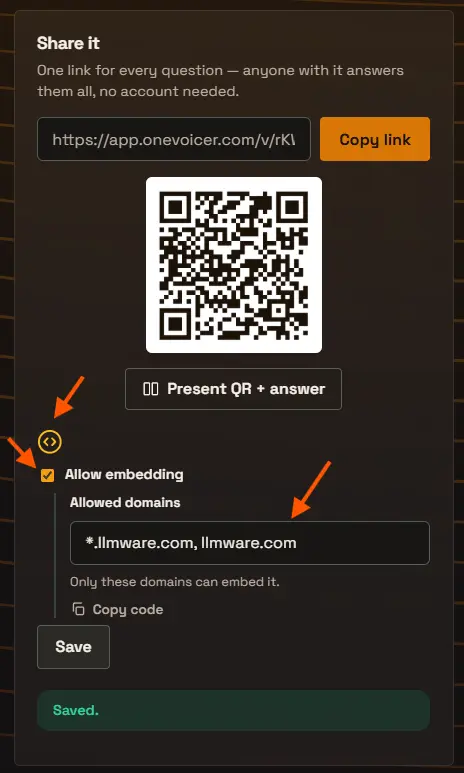
The live embed rides on OneVoicer’s embedding feature, part of the Creator plan, and it only renders on sites you have approved. The approval lives on the voicer, not in WordPress.
In OneVoicer, open the voicer, find the Share it panel, and select the <> icon to unfold “Embed on your site.” Tick Allow embedding, type your site’s domain into the Allowed domains field, Save, and make sure the voicer is live.
Use the hostname exactly as WordPress reports it under Settings, General, Site Address (URL), without the https:// and without any path. For a site at yourdomain.com, list both of these, separated by a comma:
- *.yourdomain.com
- Covers www.yourdomain.com and every other subdomain. On its own it never matches the bare yourdomain.com.
- yourdomain.com
- Covers the apex, the address with no www. On its own it never matches www.yourdomain.com.
- https only
- The allowlist only permits secure origins. A site served over plain http cannot show the live embed, whatever you list; see the next section for what visitors see instead.
- When it takes effect
- The block’s editor preview re-checks straight away. A published page follows within five minutes (the plugin caches the check); re-saving the page checks again at once.
# If visitors see a blocked frame

The block decides between the live embed and the QR card by checking one thing: the hostname in Settings, General, Site Address against the voicer’s allowed domains. The visitor’s browser then applies the full rule, against the address the visitor actually used, and it also requires https. When the block’s check passes but the browser’s does not, the live embed has already been placed and the browser refuses to load it, so visitors get the grey blocked-content placeholder instead of the voicer.
By far the most common cause is the allowed domains list. Listing only yourdomain.com while visitors arrive at www.yourdomain.com (or the other way round), or only a wildcard when the site lives on the apex, matches the block’s check on one form and fails the browser’s on the other. Go back to the voicer and list both *.yourdomain.com and yourdomain.com, exactly as in the section above, then Save. A published page picks the change up within five minutes; re-saving the page in WordPress checks again at once.
The other cause is a site served over plain http: the hostname matches, so the block expects the live embed, but the browser will only frame the voicer from an https page. Serving your site over https fixes it. Until then, turn off Allow embedding on the voicer and the block falls back to the QR card, which works everywhere.
# Frequently asked
Do my visitors need an account to answer?
No. An open voicer takes answers right in the embed with no account and no app, and the QR card leads to the public page where the same is true. Only a voicer set to require sign-in asks respondents for a OneVoicer account.
Do I need a paid plan to use the plugin?
No. The plugin is free and the QR card works on every plan, including Starter. The live on-page embed uses the embedding feature from the Creator plan.
Why does my page show the QR card instead of the live embed?
The live embed appears when the voicer has embedding enabled and your site’s domain is on its allowed domains list. Until both are true, the page shows the QR card; the block explains the exact reason in the editor. Hosts match exactly, so list both *.yourdomain.com and yourdomain.com. And the page must be served over https: on an http site the block cannot tell in advance, and visitors see a blocked frame instead. See “Allowing your site’s domain” and “If visitors see a blocked frame” above.
Does it work with the classic editor?
Yes. The [onevoicer] shortcode renders exactly what the block renders, with the same link, height, and heading options.