Putting a voicer on a PowerPoint slide
The PowerPoint add-in puts a live voicer right on a slide: the QR code your room scans and the one voice beside it, both updating as answers arrive.
# What the add-in puts on your slide

The add-in embeds your voicer’s stage, the same live view you can present from the app, directly on a PowerPoint slide. Your room sees the QR code, the question, and the one voice, and the answer keeps re-blending in real time as people scan in and reply. There is nothing to refresh and nothing to alt-tab to.
People answer on their own phones in the browser, so nobody in the audience needs PowerPoint, the add-in, or an account. Only the presenter installs anything.
# Install from the Microsoft store
The add-in is free and lives in Microsoft’s built-in add-in store, so installing it is the same in PowerPoint on Windows, Mac, the web, and iPad. On the Home tab select Add-ins, then More Add-ins to open the Office Add-ins dialog. Open the Store tab, search for OneVoicer, and select Add. On Mac the same dialog is under the Insert tab, beside My Add-ins.
Once added, OneVoicer appears under My Add-ins in every presentation. You can also open the listing on Microsoft’s marketplace with the link below and install from there; it hands off to PowerPoint for the same one-click add.
# Prefer to sideload?
If your organization blocks the store, the add-in can still be sideloaded from its manifest file, OneVoicer.xml. It is the same add-in loading from the same servers. Download the manifest below (if your browser shows it as a page of XML, right-click the link and choose “Save link as”), then follow Microsoft’s guide for your platform: a shared-folder catalog on Windows, the wef folder on Mac, or Upload My Add-in in the Office Add-ins dialog on the web.
# Copying your voicer’s share link
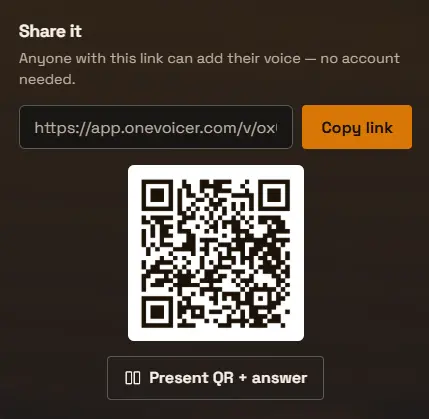
The link the add-in wants is your voicer’s share link, the same one you would send to a chat or a room. Open the voicer in OneVoicer, find the Share it panel, and select Copy link. It looks like app.onevoicer.com/v/… and it works whether or not the voicer is live, so remember to go live before the room starts scanning: a voicer only collects voices while it is live.
# Choosing the voicer
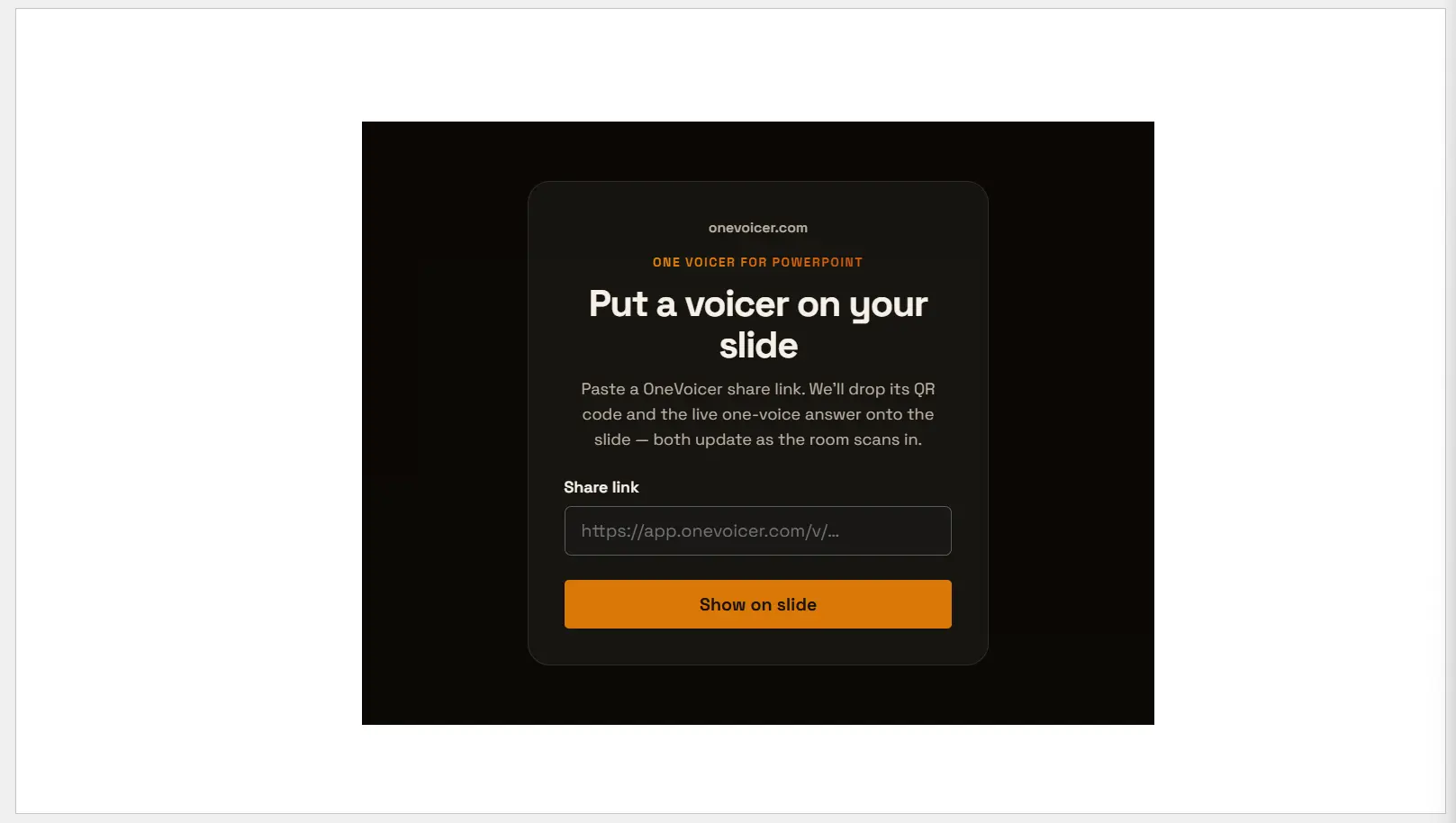
When the add-in lands on a slide it asks for that share link. Paste it in and select Show on slide. The add-in only accepts OneVoicer share links; if a link does not point at a real voicer it tells you right in the pane so you can fix it.
The choice is remembered in the presentation. Save the deck after adding the voicer, and reopening it later brings the same voicer straight back with no re-pasting. To show a different voicer, remove the add-in from the slide and insert it again with the new link.
# Presenting with it
During the talk the slide is the stage: the room scans the QR code, voices arrive, and the one voice re-blends before everyone’s eyes. It is the same voicer as everywhere else, so the voices your slide collects show up in the app, count toward the same blend, and land in the same history.
A share link is the only credential involved. Anyone who can see the slide can scan and answer, which is the point; if you want answers limited to signed-in people, set that on the voicer itself under who can respond.
# Frequently asked
Does my audience need the add-in too?
No. Only the presenter installs the add-in. The audience scans the QR code and answers in their phone browser, with no app and no account.
Which versions of PowerPoint work?
PowerPoint on Windows, Mac, the web, and iPad. Install it from the add-in store in any of them and it is available in every presentation on that device.
Is the add-in free?
Yes. The add-in costs nothing and there is nothing to sign into inside PowerPoint. Plan limits apply to the voicer itself, exactly as they do in the app.
I installed it by sideloading before the store listing. Do I need to reinstall?
No. A sideloaded install is the same add-in loading from the same servers, so it keeps working. Installing from the store is optional and simply means one less manifest file to manage.
How do I switch the slide to a different voicer?
Remove the add-in from the slide and insert it again, then paste the new voicer’s share link. Each inserted add-in remembers one voicer per presentation.
Do I need to sign in inside PowerPoint?
No. The share link is the credential. There is nothing to sign into in the pane, which is also why the add-in works in PowerPoint on the web.