Sharing your voicer and going live
A voicer only collects when it is live. Here is how to go live, share the link or QR code, and show the harvest back from the full-screen stage.
# Go live to start collecting

A new voicer starts Offline, which means it is not collecting voices yet. Press Go live and the status flips to Live, collecting voices, and the share link starts accepting answers.
You can take a voicer offline at any time to pause new answers without losing anything already collected. Going live again reopens it.
# Live and saved
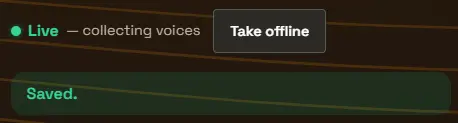
A live voicer shows a green status and a Take offline button. Settings save as you go, so the green “Saved.” confirmation is your cue that a change has stuck.
# Share the link or QR code
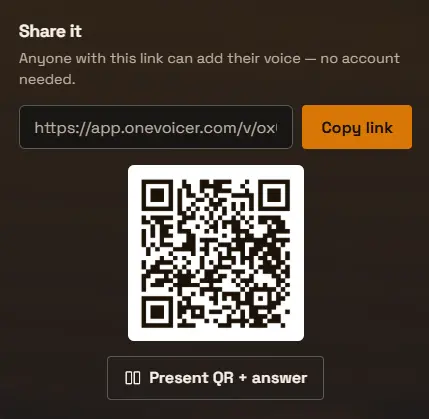
Every live voicer has a short share link like app.onevoicer.com/v/… and a matching QR code. Anyone with the link can add their voice, with no account needed. Use Copy link to drop it into a chat, an email, a story, or a stream description.
The QR code is ideal for in-person rooms: put it on a slide or a printout and people scan it with their phone camera to answer.
Both of these collect voices. To let people read what came back instead, publish the separate results page, covered in Reading the results.
# Present mode for live rooms
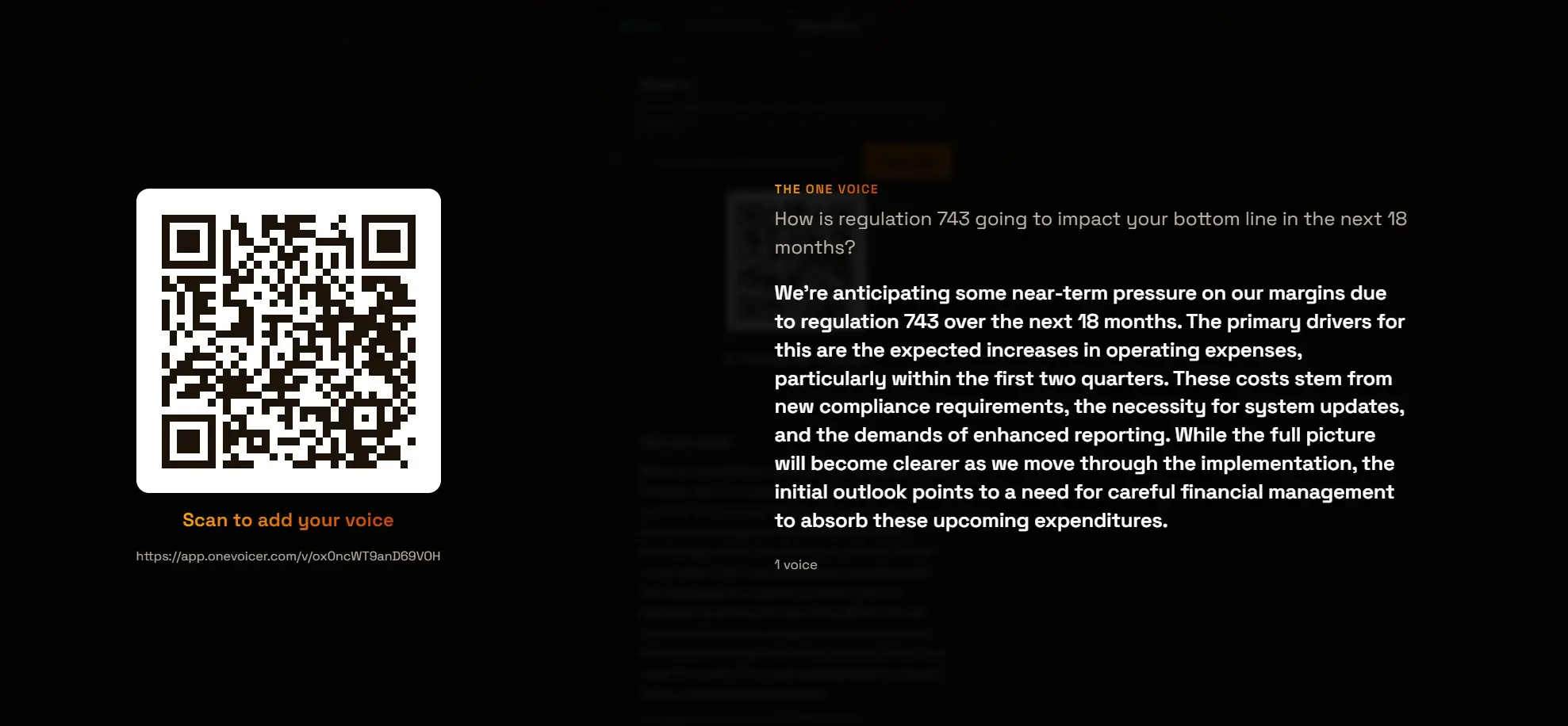
Present QR + answer opens a full-screen view built for a projector or a shared screen. The QR code sits on one side under “Scan to add your voice”, and the one voice fills the other side, updating live as the room answers.
A mode strip in the bottom-left corner switches what the stage shows, so people scan, answer from their seats, and watch the harvest take shape in whichever view fits the moment. You drive the switch; the stage never changes mode on its own.
A Full screen control in the corner expands the view to fill the entire display, and switches back when you are done. Esc returns the stage to OneVoice.
- OneVoice
- The live blend, on by default. Refreshes as answers arrive.
- Voices
- Every voice listed newest first, growing as they land. Appears once you tick Let respondents read every voice on the voicer’s page, the same setting that gives phones their read link.
- Deep dive
- The six lens cards, stepped through with the arrow keys or on-screen buttons. Appears once a deep dive report exists.
# Frequently asked
Can people answer while the voicer is offline?
No. The share link only accepts answers while the voicer is live. Taking it offline pauses new voices but keeps everything already collected.
Do respondents need the app or an account?
No. The link and QR code open in any phone browser. An account is only involved if you choose to require sign-in on the Creator plan.
Does Present mode update on its own?
Yes. The one voice refreshes as new answers come in, Voices grows as they land, and Deep dive cards land as the report finishes, so the room sees it all evolve live.