Languages: one QR code, every phone in its own language
Two settings on a voicer, the presenter language and the audience languages, let a mixed-language room share one QR code. Each respondent picks a language on their phone and reads the question, the room, and the one voice in it, while you present in yours.
# Two settings do all of it Creator plan
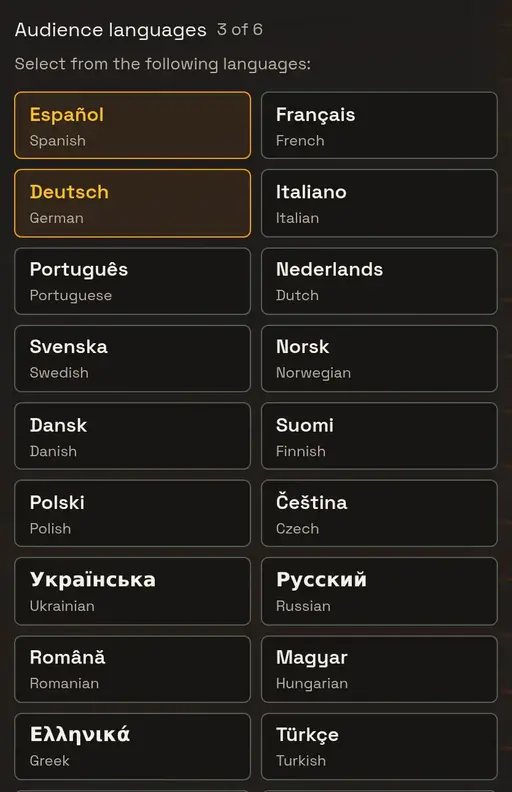
The presenter language is the language you write the question in. It is also what the one voice, the deep dive, the stage, the results page, and any export are written in, whatever languages the voices arrive in. Every voicer has one; it defaults to English.
The audience languages are the ones a respondent can switch their phone to. Tick the languages you expect in the room. Creator plans offer up to three on top of the presenter language, and Agency plans offer six. With none ticked, the respondent pages look exactly as they always have.
Save, and the question, details, completion message, and criteria are translated into each audience language right away, so the first person to tap a language finds their page ready.
# What the respondent sees
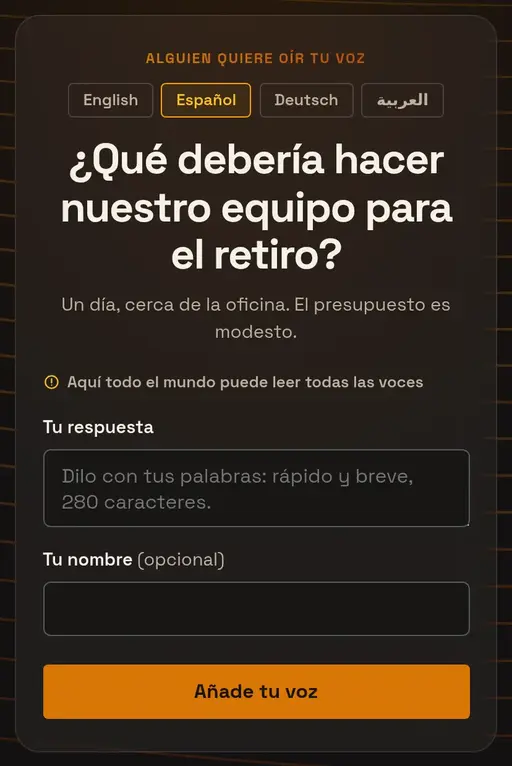
A respondent who scans the QR code lands on the page in the presenter language, with a short row of language names right under the heading, each written in its own script. One tap switches the question, the details, the form, and the completion message. Nothing is guessed from the phone’s settings: people choose from the languages you approved.
They can answer in any language whether or not they switch. The one voice reads every reply in the language it was written in before it is blended.
Once their voice is in, the one voice arrives on their phone in the language they chose, a moment after it appears on the stage in yours. The first time a fresh answer reaches a language it carries a brief “translating” note while the translation lands; after that a switch is instant.
# The stage in another language
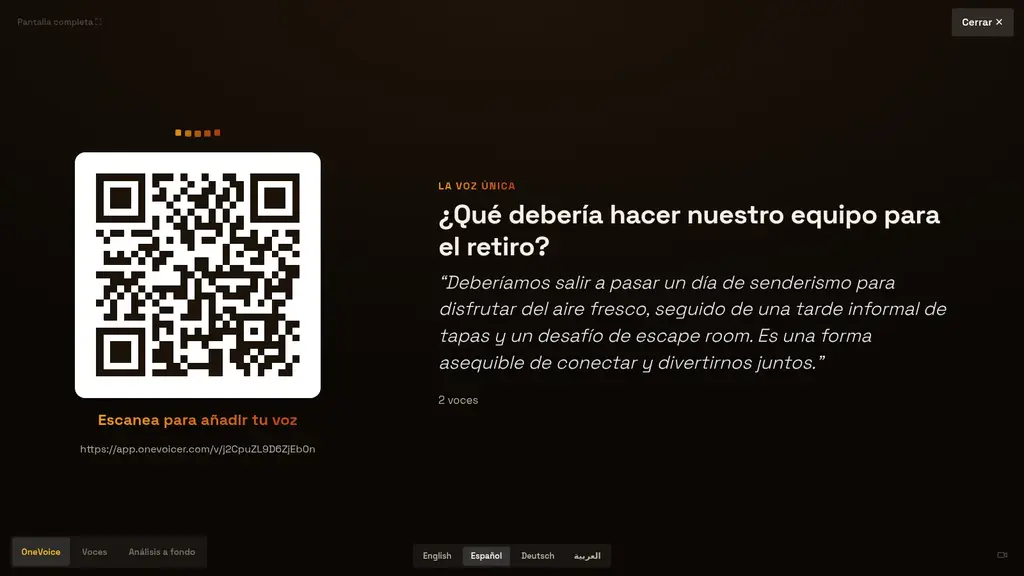
The stage opens in the presenter language. When you want the room to see another language on the big screen, tap it in the row along the bottom of the stage: the question, the one voice, Voices mode, and the deep dive all switch in place, and full screen, the camera, and your place in the session all survive. Tap the presenter language to switch back.
The row appears only when the voicer offers audience languages, and it is hidden inside the PowerPoint add-in pane, where the deck drives the stage.
# Voices as written, translated on demand
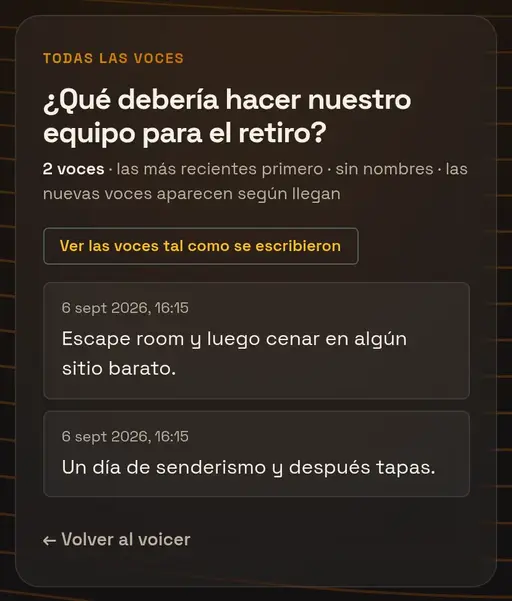
Voices are never rewritten. The open room shows every voice as it was typed, so the room can see its own mix of languages. A reader who wants them in their language taps “Show voices in …” and the list translates for them alone; a second tap shows the originals again.
The results page and your own voices list have the same toggle, in the presenter language. Voices mode on the stage translates whatever it shows into the presenter language automatically, so the projector reads in one language while the phones read in theirs.
Each voice is translated once per language and kept, so a room of a thousand voices read by a hundred Spanish phones costs the same as one.
# Deep dive and exports
A deep dive report opened in an audience language translates all six cards together once the report is complete. Until then the cards show in the presenter language with a short “translating” note, and the page keeps checking. Lens names come from the language as well.
The CSV download on a multilingual voicer gains a third column, named voice_ followed by the presenter language code, holding each voice in the presenter language. A voice whose translation has not landed yet leaves the cell empty; download again a little later and it fills in.
# Share links for a specific table
Add ?lang= and a language code to the share link, for example ?lang=es, and the page opens in that language with the switcher still available. It works only for languages the voicer offers; anything else opens in the presenter language. Print one QR code per table, or one for the whole room, whichever suits the event.
# Changing languages on a live voicer
Changing the presenter language re-blends the one voice, so the next answer comes out in the new language. Editing the question re-translates it for every audience language. Adding an audience language mid-session works immediately; removing one sends those phones back to the presenter language on their next load.
History keeps each recorded answer in the language it was blended in, so a snapshot taken while the presenter language was Spanish stays Spanish in the report.
# The languages you can offer
Any of these can be the presenter language or an audience language. Arabic, Hebrew, and Persian switch the page to right-to-left. The list is weighted to languages where the translation is reliably good; it grows on request.
- Western Europe
- English · Español (Spanish) · Français (French) · Deutsch (German) · Italiano (Italian) · Português (Portuguese) · Nederlands (Dutch) · Svenska (Swedish) · Norsk (Norwegian) · Dansk (Danish) · Suomi (Finnish)
- Central and Eastern Europe
- Polski (Polish) · Čeština (Czech) · Українська (Ukrainian) · Русский (Russian) · Română (Romanian) · Magyar (Hungarian) · Ελληνικά (Greek) · Türkçe (Turkish)
- Asia
- 简体中文 (Chinese, Simplified) · 繁體中文 (Chinese, Traditional) · 日本語 (Japanese) · 한국어 (Korean) · Tiếng Việt (Vietnamese) · ไทย (Thai) · Bahasa Indonesia (Indonesian) · हिन्दी (Hindi) · বাংলা (Bengali) · Tagalog
- Middle East and Africa
- العربية (Arabic, right-to-left) · עברית (Hebrew, right-to-left) · فارسی (Persian, right-to-left) · Kiswahili (Swahili)
# Frequently asked
Does it detect the respondent’s language from their phone?
No, on purpose. Phones are often set to a language their owner would not choose for reading, and in multilingual households the guess is wrong exactly where it matters. Respondents pick from the languages you approved, and a share link with ?lang= can preselect one.
Do respondents have to choose a language before they can answer?
No. The page opens in the presenter language and anyone can answer in any language straight away. Choosing only changes what they read.
Are the replies translated, or only the one voice?
The one voice, the question and its text, and the deep dive translate for every reader in their language. Voices stay as written and translate only when a reader turns on the toggle, or on the stage’s Voices mode and the CSV, which read in the presenter language.
Why did my one voice change when I changed the presenter language?
The one voice is written in the presenter language, so changing it schedules a fresh blend in the new language. The voices themselves are untouched.
Can I offer more than six languages?
Not on one voicer. Creator offers up to three audience languages and Agency up to six, on top of the presenter language. If your room needs more, tell us which.
Is my dashboard translated?
Not yet. Everything the respondent sees is: the respond page, the open room, the deep dive page, the stage, and the results page. The admin side stays in English for now.
Does translation change what someone said?
It is asked not to. Translations keep the meaning, tone, and any names or codes exactly, and the original is always one tap away in the room. Where wording is evidence, show the originals.
Which plans include audience languages?
Creator (three) and Agency (six). The presenter language is on every plan, since it only tells the blend what to write in.